How To Connect Controller To Steam Pair Any Controller In Just Minutes
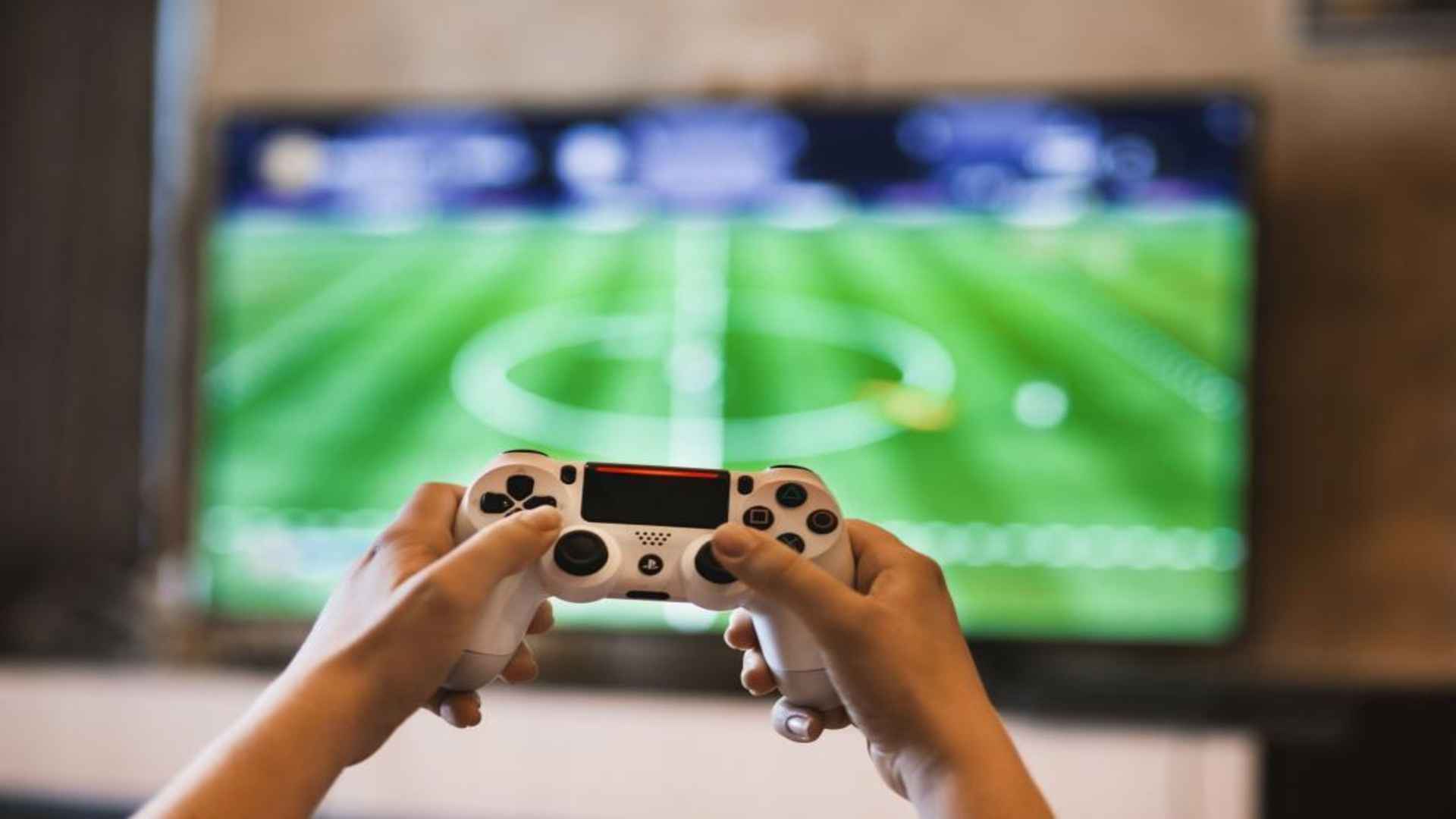
PC gaming offers unparalleled flexibility, but playing complex action games or racing titles with a keyboard and mouse can sometimes feel less than ideal. Thankfully, Valve has built comprehensive gamepad support directly into its launcher, allowing you to use almost any hardware you prefer. Whether you own an Xbox pad, a PlayStation DualSense, or a niche third-party device, setting everything up takes very little time.
Enabling Global Controller Support
Before launching your favorite game, you need to ensure the system recognizes your input device properly. Navigate to the main settings interface within the application and locate the dedicated controller tab from the sidebar menu. From here, toggle the specific configuration sliders for your respective platform to ensure proper button layout translation.
Enabling these options activates Steam Input, a powerful translation layer that maps traditional game commands to standard system inputs automatically. This feature eliminates the driver compatibility issues that historically plagued PC players using non-standard peripherals. Once enabled, your hardware will seamlessly function across your entire gaming library without individual configuration.
Connecting via Wired and Wireless Methods
For the fastest configuration possible, connecting your device using a standard USB cable provides an immediate plug-and-play experience. The computer will automatically detect the hardware layout, allowing you to jump straight into active sessions without any pairing steps. This method also guarantees the absolute lowest latency for competitive multiplayer matches.
If you prefer a wireless living room environment, pairing via your computer's built-in Bluetooth system is incredibly straightforward. Hold down the sync combination on your gamepad until the LED indicator begins flashing rapidly to signal pairing readiness. Then, select the device from your operating system's hardware menu to establish a permanent wireless connection.
Customizing Layouts and Community Profiles
One of the greatest advantages of this ecosystem is the ability to fully remap every single input variable to your exact liking. By accessing the overlay during active gameplay, you can adjust stick sensitivities, deadzones, and trigger thresholds easily. This allows for a completely personalized ergonomic experience tailored specifically to your playstyle.
If you prefer not to configure settings manually, you can explore thousands of configurations shared publicly by fellow gamers. The built-in community layout tab allows you to download specialized configurations for strategy titles or older releases that lack native gamepad support. This collaborative feature ensures that even complex text-heavy games remain comfortable to navigate from the couch.
Troubleshooting Common Calibration Issues
If your inputs feel unresponsive or erratic, the built-in diagnostic tools can quickly recalibrate your hardware parameters. Utilizing the calibration interface allows you to test axis accuracy and adjust drift values on aging analog joysticks. Regular maintenance through these software tools helps prolong the functional lifespan of your favorite peripherals.
Occasionally, background software conflicts can prevent the platform from capturing your hardware inputs correctly. Ensuring that secondary translation software is fully closed before launching games will typically resolve detection errors immediately. Keeping your device firmware fully updated through the manufacturer's official utility also guarantees long-term stability.